How to Complete TAP Online
How to keep your hands free during military transition training, plus a free year of ChatGPT you might qualify for.

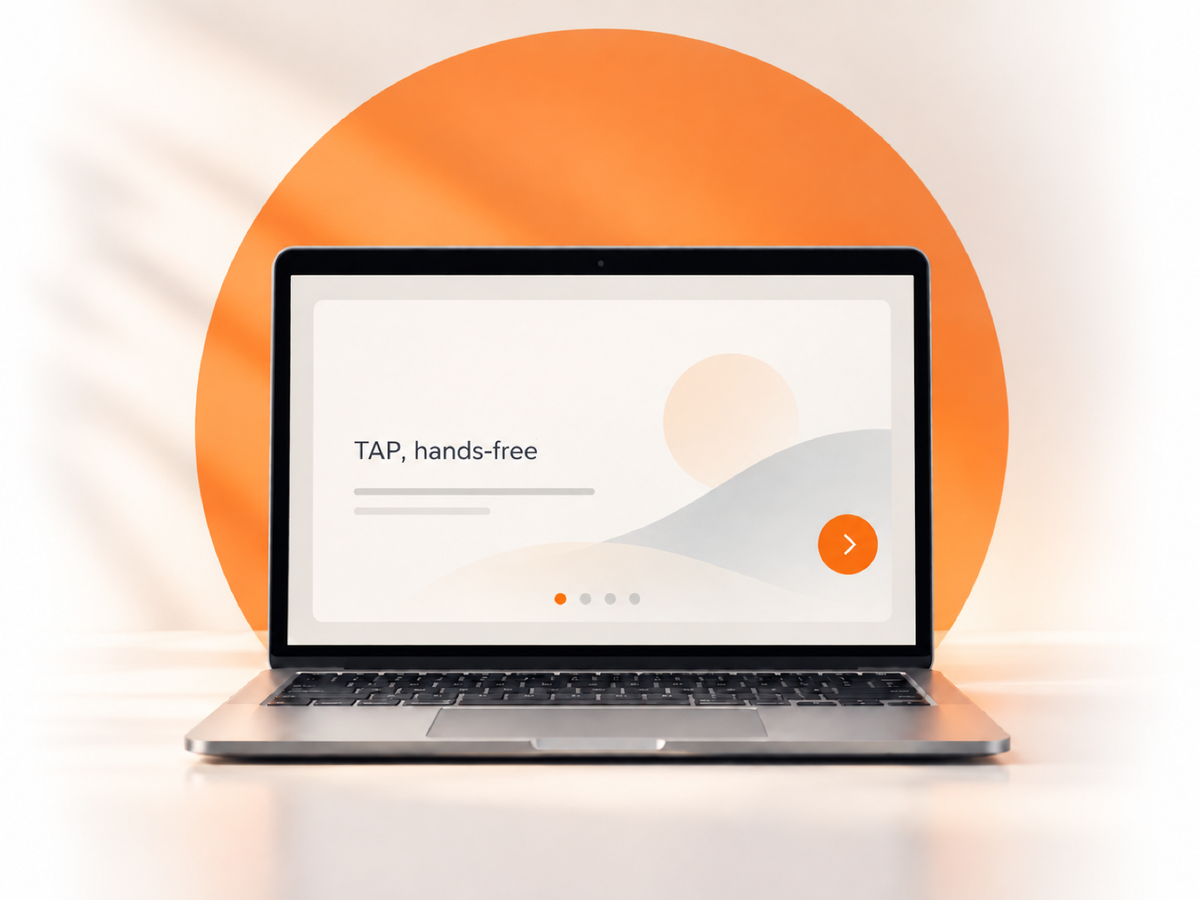
...and have AI do it for you completely hands-free!
If you’ve read my fitness posts, you’re probably aware that cycling has become my preferred method of mindlessly sitting in front of another screen. Zwift, specifically, has somehow convinced me that riding a bicycle which goes absolutely nowhere is a productive use of several hours.
Which it is.
Recently, I wanted to complete some of my online Transition Assistance Program coursework while riding. Seemed reasonable enough: get on the bike, put TAP on the screen, and learn what happens when the military stops paying for everything I’ve become accustomed to having.
The problem was the Next button.
Every time a slide finished, I had to reach over with my sweaty hands and click it. Then settle back onto the bike, listen to the next slide, and do it again. Apparently, my transition to civilian life also required demonstrating continued proficiency with a trackpad.
So I asked ChatGPT if it could click the button for me.
It could. There was a little more setup involved than simply asking, but once it had access to the course window, it waited for the slides to finish and advanced them.
I could keep watching. My laptop could stop drowning in Will Paige electrolytes.
Please actually pay attention
Before someone takes the title as permission to run TAP in the background while they leave the house: please don’t.
TAP is congressionally mandated, and the information can have a real effect on your life after the military. Your pay, taxes, benefits, insurance, and employment are all worth understanding before you discover how much of your current lifestyle has been quietly subsidized.
You can be annoyed by the format and still take the material seriously. I certainly think both are possible.
If you use this to avoid participating, you’re only hurting yourself. The whole reason I wanted it was to watch while biking without constantly touching the computer. It’s also useful if you like to sit and listen, but don't want to reach for the mouse after every slide.
And when the course needs you to look at a chart, complete a worksheet, or answer a question, you still need to do that. Headphones don’t make a spending plan an audiobook.
Can you do TAP online?
Yes, online TAP courses are available through the TAP Online Learning Portal.
The Transition Assistance Program is required under federal law, generally for service members leaving active duty after at least 180 continuous days. It includes more than the slideshow portion: counseling, courses, and work intended to help you prepare for separation or retirement. Official TAP requirements
Talk to your transition counselor about which online courses fulfill your requirements. In-person attendance remains the preferred method in the official guidance, and accessing the public course material is not automatically the same as receiving completion credit. Online TAP guidance
For example, VA specifically says you need to register with your CAC or DOD identification information and provide the required details to receive mandatory credit for its online Benefits and Services course. VA registration instructions
Would be unfortunate to learn all about preparing for civilian employment and then discover you still have to explain to someone why your training shows incomplete.
Also, you might get ChatGPT free for a year
A useful detour before we get to the setup.
How to Get ChatGPT Plus Free
OpenAI offers 12 months of ChatGPT Plus free to eligible U.S. service members transitioning within the next 12 months, and veterans or retirees who left active duty within the past 12 months.
You can claim it through the official ChatGPT military offer page. Sign into the personal account you want to use, follow the ID.me verification process, and claim the offer once your eligibility is confirmed.
Check the terms. It renews at the standard subscription rate after the promotional year unless canceled. The current terms also say canceling ends promotional access, so actually read the cancellation information before trying the usual “sign up and immediately cancel so I don’t forget” maneuver. Official offer terms
Even if having AI operate your Next button feels excessive, a free year gives you time to experiment with resumes, interview prep, and explaining your military experience to someone who has never heard of your job.
Preferably without inventing a second, more impressive military career for you. Read what it writes.
Tools You May Need
Laptop
Whatever runs the ChatGPT desktop app smoothly enough for Computer Use to track the screen in real time. This isn't the moment for a machine that chugs on video calls.
Indoor bike or trainer
Whatever you're already using with Zwift works: smart trainer, spin bike, whatever gets you pedaling in place while pretending it's productive.
Walking pad
If TAP coursework doesn't need your full attention (or you just can't handle another hour clipped in), a walking pad under a standing desk covers the same hands-free screen time problem without the sweat.
Laptop stand or mount
You need the course window at eye level and stable, not balanced on a stack of old flight manuals. A handlebar or desk-mount stand keeps it steady while you ride.
Standing desk
For the walking pad setup, or just for anyone doing TAP at a desk instead of on a bike. Being upright and moving beats sitting through 200 minutes of VA benefits slides.
Headphones
Something that isolates well enough to actually hear narration over a trainer or fan. Over-ear if you're at a desk, a sweat-resistant pair if you're riding.
Heads up: this post contains referral and affiliate links, including Amazon Associates links. If you sign up or buy through them, I may earn a commission or membership credit at no extra cost to you. As an Amazon Associate I earn from qualifying purchases. Nobody sponsors The Flyby — I bought everything reviewed here.
What I Used
My setup was a Mac, Safari with the TAP course open, and Codex with computer control enabled.
I didn’t train a model or write a script. I told the agent what I wanted it to do and gave it access to the window.
It waited for the timed slides to finish, clicked Next, and checked the next screen. When it encountered informational activities with multiple buttons, I told it to open the options needed to proceed.
Eventually, it reached a knowledge check and stopped for my input.
That’s what I tested. I didn’t have it finish the entire TAP program, and there were a few moments where it had to look at the window again before figuring out what had changed. So I wouldn’t describe it as flawless.
But I also wasn't asking it to land a plane. There was some room for error in locating the button.
Setting it up on Mac or Windows
You need computer control enabled. An ordinary ChatGPT conversation cannot operate your laptop just because you write “click Next” with sufficient confidence.
OpenAI currently documents Computer Use on Mac and Windows in supported regions through ChatGPT Work and Codex. Check that it’s available in your account before paying for anything specifically to try this.
- Open the desktop app and select Work or Codex.
- Go to Plugins > Computer Use and install or enable it. Turn on its server and skill toggles.
- On Mac, grant the requested Screen Recording and Accessibility permissions.
- Under Settings > Computer use, review access for the browser you’ll use.
Windows has a practical limitation: computer control uses the active desktop and foreground input. Keep TAP visible. If you're riding on Zwift too, I’d run Zwift on a separate device. Official setup instructions
Log into TAP yourself, open the assigned course, and check the sound before starting. Keep personal pay statements and other sensitive documents out of the shared window. The agent needs the course player, not a guided tour of your finances.
Then paste the following. Replace the brackets with your browser and course name.
Copy This Prompt
Use Computer Use to navigate my online Transition Assistance Program course in [browser], in the window titled [course name].
I am present and watching or listening. I want my hands free while riding an indoor stationary bike or listening at my desk.
Confirm that you can see the correct course window and its controls. If you cannot control it, explain what setup is missing.
Wait for each slide’s narration or video to finish and for Next to become enabled. Click Next once, then verify that the new slide has loaded. Keep the existing playback speed and respect all timers.
For informational activities with tabs, buttons, or expandable panels, open each option one at a time. Let narration finish before moving on. Leave text-only panels visible long enough for me to read, using about 150 words per minute and at least 15 seconds per panel. Close informational popups as needed and proceed when the activity allows it.
If a choice determines my personal course path, such as separating versus retiring, ask which applies.
Stop and alert me at knowledge checks, quizzes, required personal worksheet activities, acknowledgments, certifications, signatures, or submissions. Do not choose assessment answers or claim I completed an activity.
Stay within the course player. Do not open personal pay, benefits, banking, or other accounts.
Continue routine navigation until the section ends, you need my input, or I say stop. If you lose access or cannot continue, tell me. Do not claim to be monitoring after the task has ended.
If I say pause or stop, stop clicking immediately.
You want enough time to absorb each one, rather than watch the agent enthusiastically open five explanations in the time it takes you to reach for your water bottle.
Try a couple of slides first. Make sure it’s waiting for the narration and operating the right window before you settle into your ride.
Would I Use It Again?
Yes. This is exactly the kind of small, annoying task I’d like a computer to handle.
I still need to understand the material. I still need to work through the activities and answer the questions. But repeatedly leaning over the handlebars to press Next adds very little to my understanding of civilian tax liability.
If you’re doing online TAP, give it a try and let me know how it works with your course. And send the free ChatGPT Plus link to someone getting out who might actually use it.
I’ll be on the bike, crying while learning how much health insurance costs.
Your Support
I write everything for free in the hopes that it will inspire and educate on what it’s like to fly planes in the world’s greatest Navy and to spread the joys of aviation in general. I don't run ads and I don't put anything behind a paywall.
If you enjoyed this article, you can show your support by checking out my store on Etsy, where I sell really cool aviation-themed streetwear clothing. It’s all designed by me, a real-life, very-average fighter pilot.

Also, if you're interested in Whoop and how it can help in your fitness journey, you can try a one month free trial. I'm not sponsored but it does help me to continue to write on topics and tech that help pilots and fitness enthusiasts.

Or, if you think you'd prefer to give Bevel Health (my favorite app to use with my Garmin Fenix) a go, you can also try one month free.
And finally, if you are interested in the best fitness watch on the planet, worn by thousands of pilots worldwide, check out Garmin. I'm not sponsored, they just make one hell of a product. If you shop through my Amazon affiliate link, I make a small commission at no cost to you. It's not quite enough to pay for weekend gas in the Cessna, but it does help cover a couple of beers. Thank you!

Let me know if you decide to try any of them out and what your thoughts are! I love talking tech.
-Will